Introduction
In today's digital age, knowing how to take a screenshot on your computer is an essential skill. Whether you're capturing an error message for technical support, saving a receipt from an online purchase, or sharing something interesting with a friend, screenshots are invaluable tools. This comprehensive guide will walk you through the various methods of taking screenshots on different operating systems, including Windows, macOS, and Linux. We will also cover some advanced techniques and tools that can enhance your screenshot-taking experience.
Taking Screenshots on Windows
Windows provides several built-in methods to capture screenshots, each suited for different needs. Here are the most common methods:
1. Using the Print Screen Key
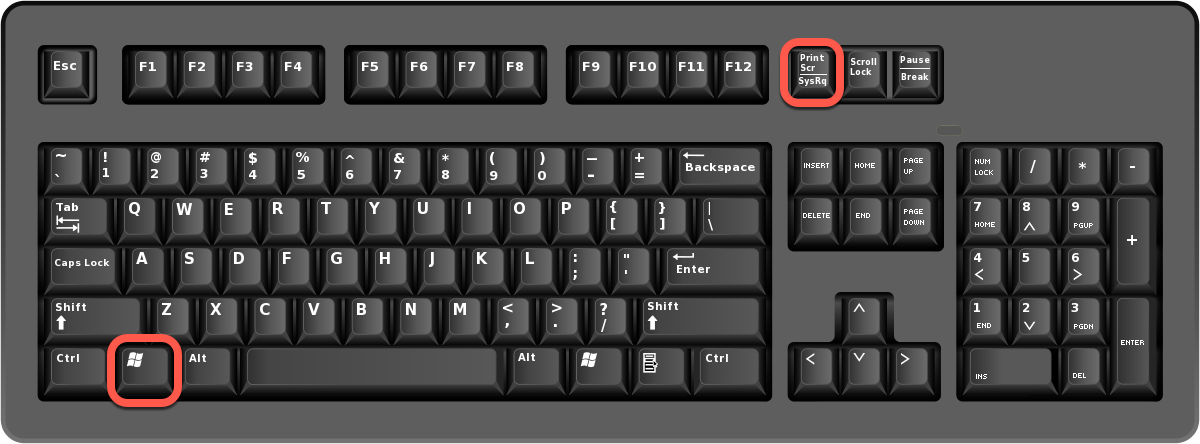
The simplest way to take a screenshot on Windows is by using the Print Screen (PrtScn) key. Here’s how:
- Full Screen Capture:
- Press the PrtScn key. This captures the entire screen and copies it to the clipboard.
- Open an image editing program (e.g., Paint) and paste the screenshot by pressing Ctrl + V.
- Save the image by selecting "File" > "Save As".
- Active Window Capture:
- Press Alt + PrtScn to capture only the active window.
- Paste and save the image using an image editing program as described above.
- Specific Area Capture:
- Press Windows + Shift + S. The screen will dim, and your cursor will change to a crosshair.
- Click and drag to select the area you want to capture.
- The screenshot is copied to the clipboard. Paste it into an image editor to save.
2. Using the Snipping Tool
The Snipping Tool is a built-in utility that offers more flexibility:
- Open the Snipping Tool from the Start menu.
- Click "New" and select the area you want to capture.
- Edit the screenshot if needed and save it by clicking "File" > "Save As".
3. Using Snip & Sketch
Windows 10 and later versions include Snip & Sketch, a more advanced tool:
- Press Windows + Shift + S.
- Select the type of snip you want (rectangular, freeform, window, or full screen).
- The screenshot is copied to the clipboard and can be edited in the Snip & Sketch app, which opens automatically.
Taking Screenshots on macOS
Mac users also have several options for taking screenshots:
1. Using Keyboard Shortcuts
- Full Screen Capture:
- Press Command + Shift + 3. The screenshot is saved to your desktop.
- Selected Area Capture:
- Press Command + Shift + 4. Your cursor will change to a crosshair.
- Click and drag to select the area you want to capture. The screenshot is saved to your desktop.
- Window Capture:
- Press Command + Shift + 4, then press the Spacebar. The cursor changes to a camera.
- Click the window you want to capture. The screenshot is saved to your desktop.
2. Using the Screenshot Toolbar (macOS Mojave and later)
- Press Command + Shift + 5 to open the Screenshot toolbar.
- Choose from options to capture the entire screen, a selected window, or a selected portion.
- Click "Capture" to take the screenshot.
Taking Screenshots on Linux
Linux users can use various methods depending on their desktop environment:
1. Using Keyboard Shortcuts
- Full Screen Capture:
- Press the PrtScn key. The screenshot is saved to your Pictures folder or clipboard, depending on your distribution.
- Active Window Capture:
- Press Alt + PrtScn. The screenshot is saved to your Pictures folder or clipboard.
- Selected Area Capture:
- Press Shift + PrtScn or Ctrl + Shift + PrtScn depending on your distribution. Select the area to capture.
2. Using Screenshot Tools
- Gnome Screenshot:
- Available on GNOME desktop environments. Access it from the applications menu and choose your capture options.
- Shutter:
- A more advanced tool available for various distributions. Install it using your package manager and use its GUI to capture screenshots.
Advanced Screenshot Tools
For those needing more advanced features, several third-party tools are available:
1. Lightshot
Lightshot is a free tool available for Windows and macOS. It allows you to quickly take screenshots, annotate them, and upload them to the cloud for sharing.
2. Greenshot
Greenshot is an open-source tool for Windows that offers advanced features like capturing scrolling web pages, annotating, and exporting in various formats.
3. ShareX
ShareX is a powerful, open-source tool for Windows that supports various capture methods, including region, full screen, and freehand. It also offers extensive editing and sharing options.
Tips for Taking Better Screenshots
- Use High Resolution:
- Ensure your screen resolution is set to the highest setting to capture clear and detailed screenshots.
- Annotate and Edit:
- Use built-in tools or third-party software to highlight important areas, add text, and make your screenshots more informative.
- Organize Your Screenshots:
- Create a dedicated folder for your screenshots and name them descriptively for easy retrieval.
- Keyboard Shortcuts:
- Familiarize yourself with keyboard shortcuts for faster and more efficient screenshot-taking.
Conclusion
Taking screenshots on a computer is a simple yet powerful skill that can enhance your productivity and communication. Whether you're using Windows, macOS, or Linux, the methods and tools discussed in this guide will help you capture your screen effectively. From basic keyboard shortcuts to advanced third-party tools, you have a wide range of options to suit your needs. Practice these techniques, and soon taking screenshots will become second nature.